Lead Connect
Introduction
Welcome to the Lead Connect module for PerfexCRM! This user guide will walk you through the installation, setup, and usage of the module to efficiently manage leads and streamline communication processes within your organization.
Installation
- Navigate to Setup > Modules.
- Upload the module zip file.
- Click on Install and then Activate.
Configuration
- Go to Setup > Settings > LeadConnect Settings.
- Configure either TATA Telecom API or Twilio configuration details. Note: Only one of these can be enabled at a time.
- Set up auto lead assign options as per your preference.
Assigning Staff Numbers
- Navigate to Setup > Staff.
- Select a staff member and add their TATA DID or Twilio number.
Usage
Main Menu
- Lead Connect: Access the main functionalities of the Lead Connect module.
- Dashboard: View an overview of call activities and lead assignments.
- Leads: Manage leads and initiate calls.
- Logs: Review call logs and activities.
Leads
- Under Leads, click on a lead to view details.
- Click on the call button next to the lead to initiate a call.
- Staff members will receive the first call, and upon answering, the call will be connected to the customer.
- Enter any relevant notes during or after the call, which will be recorded in the lead's activity log.
Logs
- View all call logs and activities under the Logs menu.
Setting Up Twilio Account
-
Create a TwiML App in your Twilio account.
Phone Number-> Manage ->TwiML app -
Give a name, Voice Configuration Request URL as
https://yourdomain/lead_connect/webhook/call_handler. Request Method isPOST -
Click Create.
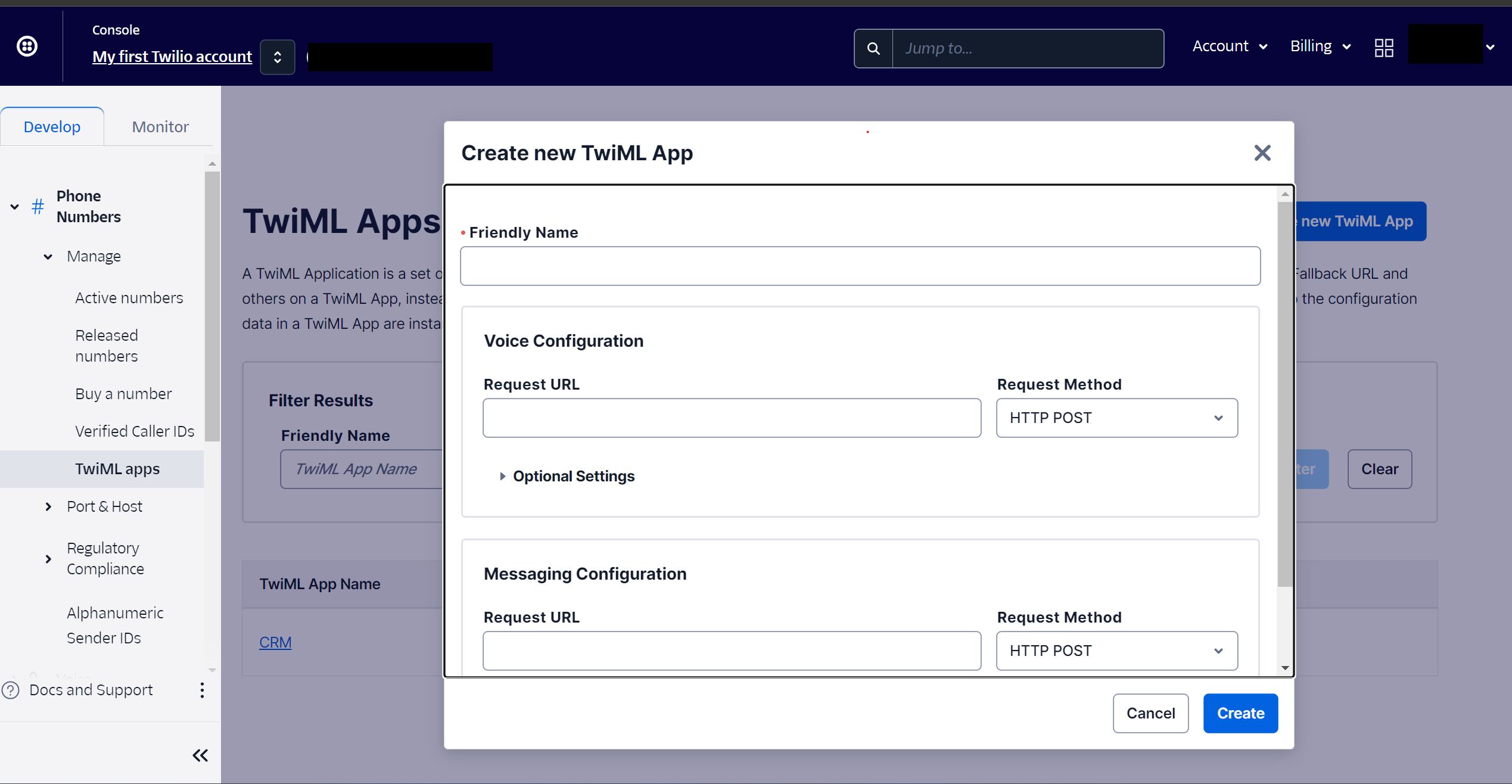
-
Click the App name again to get the
TwiML App SID -
Go to
Phone Numbers -> Manage -> Active NumbersChange Voice Configuration, Configure WithTwiML Appand SelectTwiML Appcreated in previous step.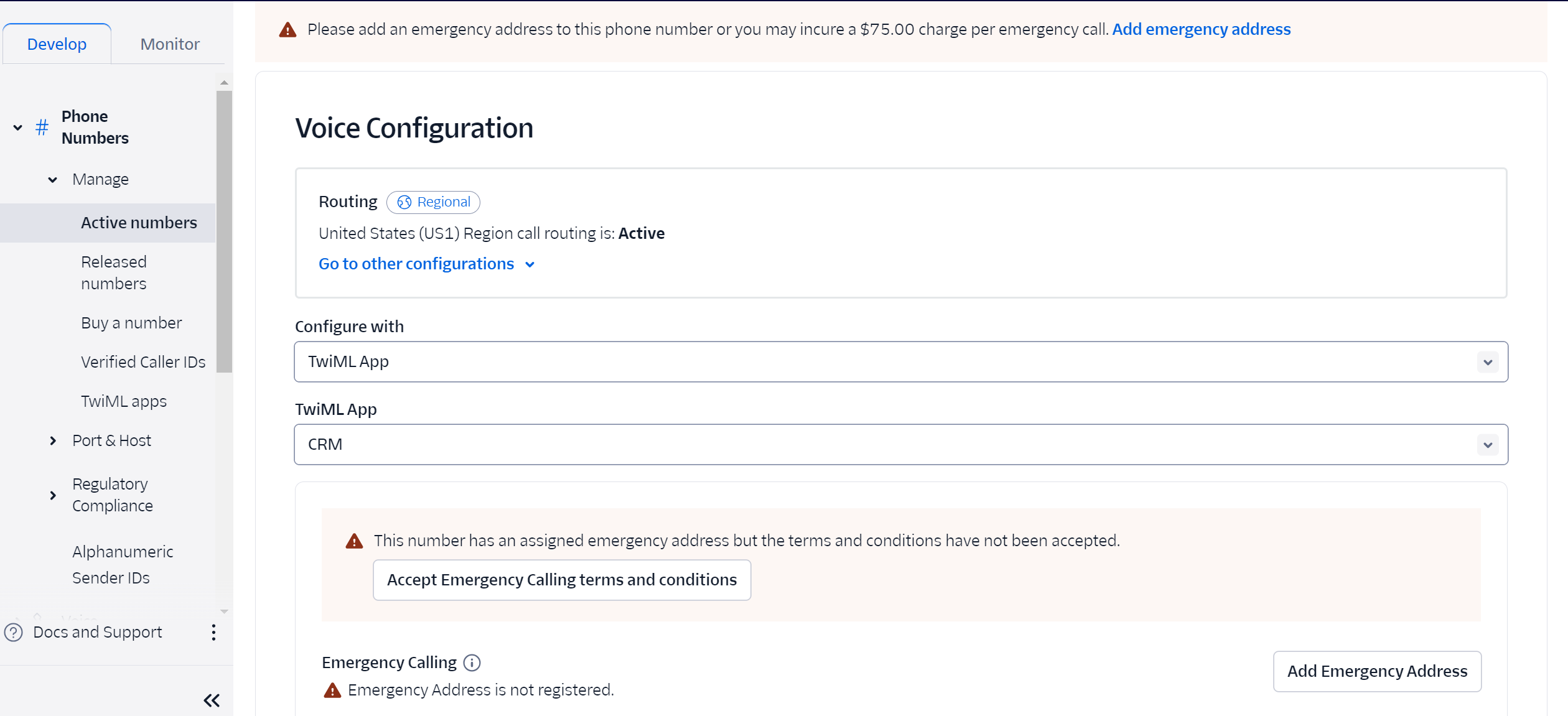
-
Go to
Account -> API Keys & tokensCopy account SID & Auth token to LeadConnect Settings page.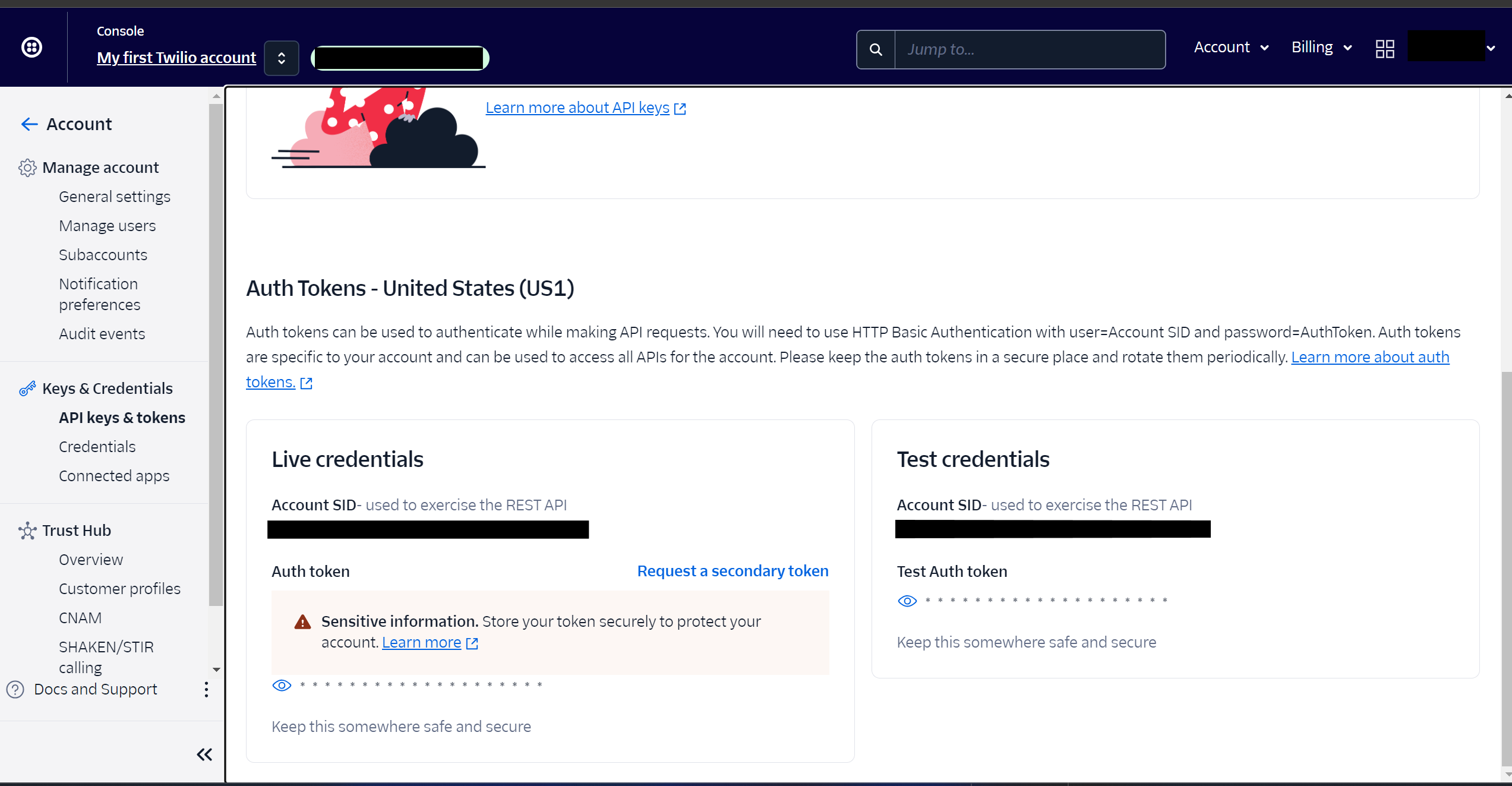
Setting Up TATA Telecom API Integration
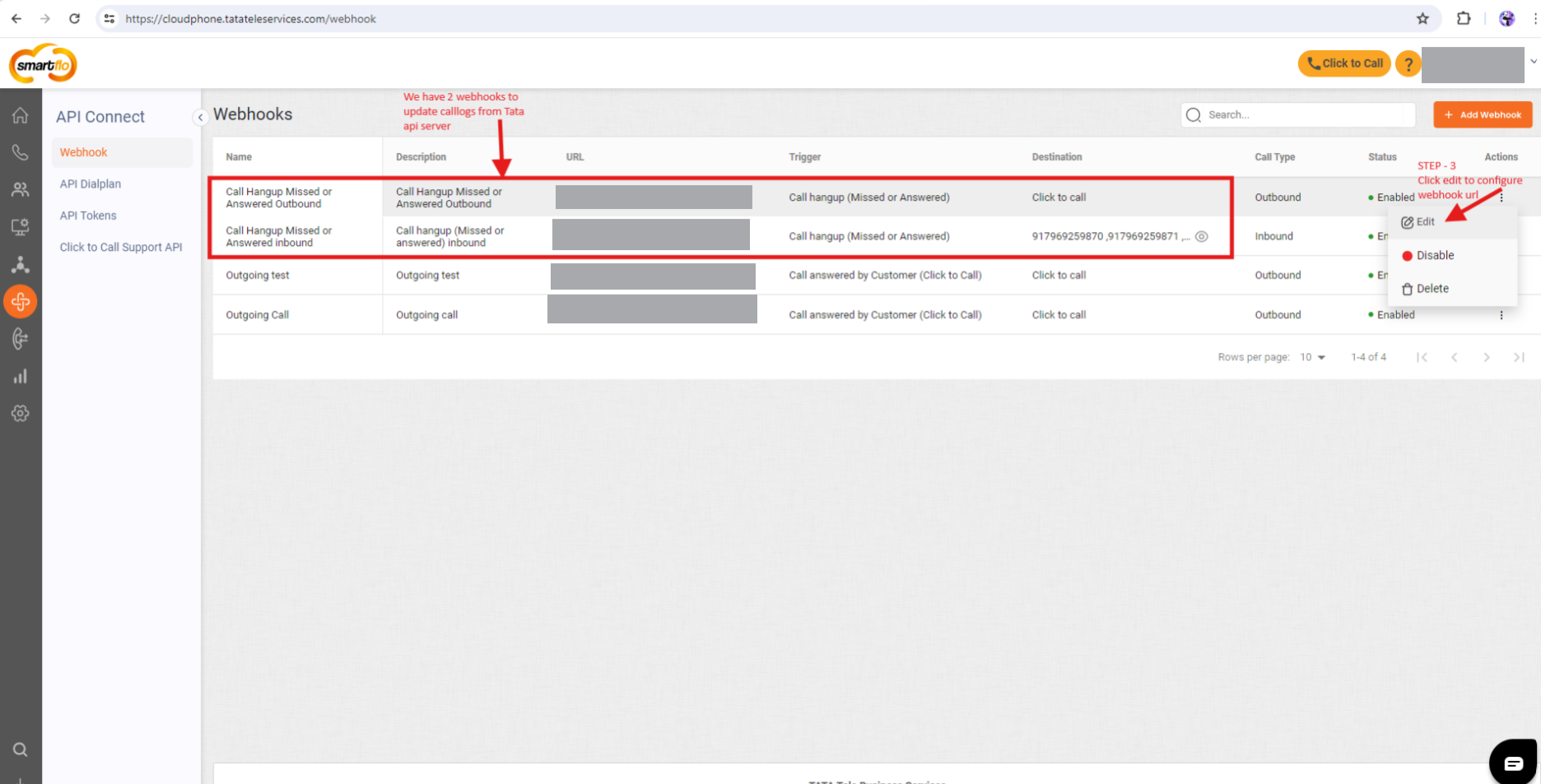
- Navigate to Main Menu > API Connect > Webhook.
- Add two entries for inbound and outgoing calls with the trigger set as "call hangup".
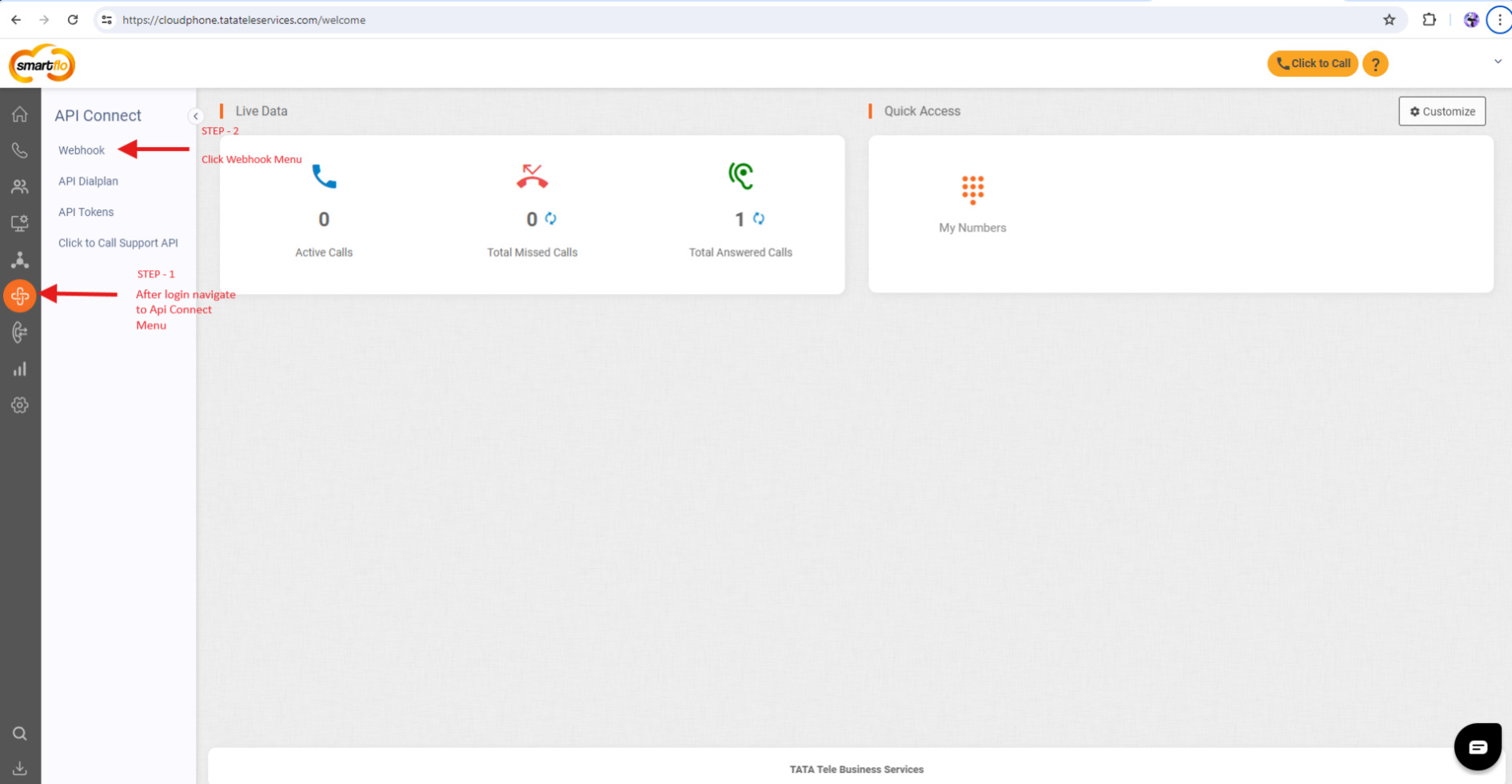
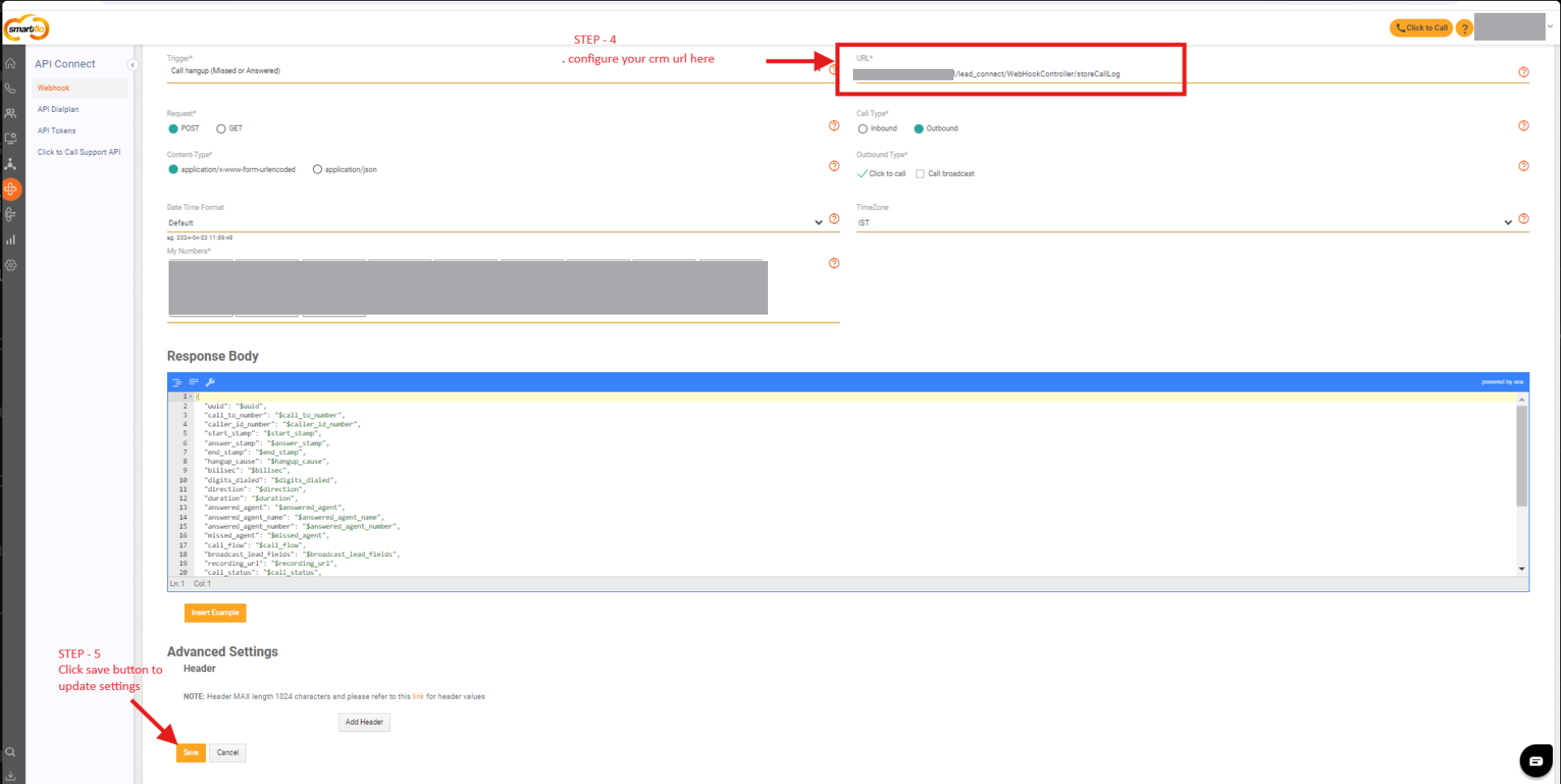
- Configure Username & Password in LeadConnect Settings Page
Conclusion
Congratulations! You're now equipped to efficiently manage leads and streamline communication processes with the Lead Connect module. If you encounter any issues or have questions, please refer to the documentation or contact our support team for assistance.